NAS 3-2-1 Backup Rule: Setup and Recovery Guide
Buying a NAS feels like solving your storage problem forever. You slot in a couple of drives, create a shared folder, point your phone and laptop at it, and suddenly every photo, project file, and download lives in one tidy place. That convenience is exactly where the risk begins: one tidy place is also one single point of failure. This is exactly what the NAS 3-2-1 backup rule is designed to fix, and following the NAS 3-2-1 backup rule as a beginner usually takes no more than a single afternoon to set up — and you’ll still understand every piece of it a year later. (Air Circulator for Indoor Humidity Control: A Beginner’s Guide)
What follows is a plain-language tour of the rule, a practical map onto a typical home server, and — the part most people skip — the recovery side, meaning how you actually get files back when something goes wrong. Treat any menu names here as examples rather than gospel, since labels differ between brands and firmware versions. The logic underneath stays the same everywhere.
What the NAS 3-2-1 Backup Rule Actually Means
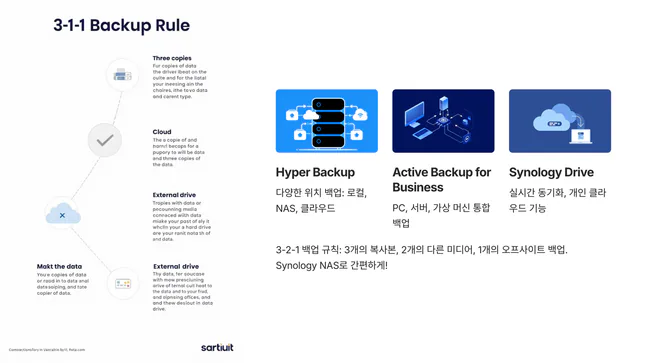
The name is a counting exercise, not jargon. It describes a minimum shape for your data: (How to Keep Your Home Organized Long-Term: Habits That Actually Stick)
- 3 copies of the data. The original you work with, plus two backups. If you only have an original and one backup, a single bad moment — a failed restore, a corrupted archive — leaves you with nothing.
- 2 different types of storage media or devices. Not two folders on the same NAS, and ideally not two drives from the same batch sitting in the same chassis. An external USB drive, a second NAS, or object storage in the cloud all count as a different basket.
- 1 copy kept offsite. Somewhere that would survive a fire, a flood, a burglary, or a power surge at your home. Cloud storage counts. So does a drive at a relative’s apartment.
How the counting works in a real home setup
Say your laptop holds your active projects and your NAS holds everything else. A workable arrangement looks like this table:
| Copy | Where it lives | Role |
|---|---|---|
| Copy 1 | NAS shared folders (working data) | The version you use daily |
| Copy 2 | External USB drive attached to the NAS | Fast local restore, different device |
| Copy 3 | Cloud bucket or a drive stored elsewhere | Disaster and theft protection |
Three copies, two kinds of storage, one of them offsite. That is the entire rule. Everything below is about carrying it out carefully enough that it still works on the day you are stressed and in a hurry.
Why Your NAS by Itself Is Not a Backup
Three misunderstandings sit behind most of the painful stories you read in self-hosting forums, and each one gets easier to avoid once you can name it.
RAID is uptime, not safety. A mirrored or parity array is built so the system keeps running when one drive dies. It does nothing about an accidental delete, a buggy app overwriting files, a controller failure that scrambles the array, or lightning taking out the whole box. RAID protects the service; backups protect the data.
Sync is not backup. Tools that mirror a folder in real time are wonderful for access, but they faithfully replicate your mistakes too. Delete a folder on your laptop and the deletion can propagate within seconds. A real backup keeps historical versions so you can go back to yesterday, not just to five minutes ago.
Ransomware follows network shares. If a compromised PC can write to your backup destination over SMB using the same credentials it uses daily, that destination may be encrypted along with everything else. This is why the offsite copy should be pulled or written by the NAS itself with separate credentials, and why versioned or immutable storage is worth the extra configuration effort.
A useful shorthand: RAID keeps the service alive, snapshots undo human mistakes, and backups survive the loss of the machine itself. You want all three, and only the last one satisfies the rule.
Planning Your Copies Before You Touch Any Settings
Spend a short session on paper first. Backup projects tend to fail from vague scope more often than from technical errors.
Sort your data into tiers
Not everything deserves three copies. Try grouping into three buckets: irreplaceable (family photos and videos, documents, scans, personal projects, password vault exports), expensive to rebuild (configuration files, container volumes, self-hosted app databases, code repositories that only exist locally), and re-downloadable (media libraries you could fetch again, ISO files, game installers). The first two tiers get the full treatment. The third can live with a single copy if your budget is tight — just be honest with yourself about how long re-downloading would actually take.
Size the destinations and set a retention rule
Add up the tiers you plan to protect, then give the backup destination meaningful headroom, because version history consumes space over time. Decide on a retention policy in words before you translate it into a form field, for example: keep daily versions for two weeks, weekly for two months, monthly for a year. Writing it down first makes the settings screen much less intimidating.
Step-by-Step Setup on a Home NAS
The sequence below assumes a consumer NAS with a web interface and a bundled backup app. Names vary by vendor, so look for the function rather than the exact label.
Step 1: Get the primary copy tidy
Create clear shared folders — something like photos, documents, projects, appdata — instead of one giant dumping ground. Backup jobs are defined per folder, so a clean layout means you can protect the important things without dragging along a pile of temporary files. Enable the NAS filesystem’s snapshot feature if your model supports it; snapshots are not a substitute for backups, but they are usually the fastest way to undo an accidental delete.
Step 2: Build the second copy locally
Attach an external drive to the NAS, or use a second internal volume on a physically separate disk, and create a scheduled backup task that runs overnight. Choose an option that keeps multiple versions rather than a plain mirror. Two settings deserve a moment of thought: enable checksum or integrity verification if it is offered, and enable encryption if the drive might ever leave your home. Write the encryption key or recovery passphrase somewhere outside the NAS — a password manager plus a paper copy is a reasonable belt-and-braces approach.
Step 3: Add the offsite copy
Point a second job at a remote destination: an object-storage bucket, a supported cloud backup service, or a NAS at a friend’s or family member’s place over an encrypted connection. Stagger the schedule so the offsite job does not compete with the local one, and let the first upload run for as long as it needs. Initial seeding of a large photo library can take days on a home upload link, which is normal.
Step 4: Lock down credentials
Create a dedicated account or access key used only by the backup job, with permission to write to the destination and nothing else. Avoid reusing your admin password. If your remote provider offers versioning or object lock, turning it on gives you a safety margin against a compromised key deleting history.
Step 5: Turn on notifications
A silent backup is only a rumour. Configure email or push alerts for job success and failure, and make sure the alert actually reaches a device you look at. The most common failure pattern is not a dramatic crash — it is a task that quietly stopped running months ago while everyone assumed it was fine.
Step 6: Record the job details in one place
Before you close the admin panel, write down what each job does in a single short table. Job name, source folder, destination, schedule, retention, and whether encryption is on. This takes a few minutes and turns an opaque set of tasks into something you can audit later. A simple version might look like this:
| Job | Source | Destination | Runs |
|---|---|---|---|
| local-daily | photos, documents, projects | External drive on the NAS | Nightly, versioned |
| offsite-weekly | photos, documents, appdata | Remote bucket or remote NAS | Weekly, encrypted |
| config-export | NAS system settings | Password manager attachment | After any major change |
Choosing and Securing the Offsite Copy
There are three practical routes for the offsite leg, and each fits a different temperament.
Cloud storage is the least effort to keep current. It runs automatically, survives anything that happens to your building, and scales with your data. The trade-offs are ongoing cost, dependence on your upload speed, and the need to check whether retrieving a large amount of data incurs extra charges with your chosen provider. Read the pricing page for the specific tier you pick rather than assuming.
A rotated pair of external drives is the low-cost classic: two encrypted drives, one at home and one stored elsewhere, swapped on a regular schedule. There is no recurring fee after purchase and restores tend to be quick, but it depends entirely on you remembering to rotate. Put the swap on a recurring calendar reminder.
A remote NAS — yours at a relative’s place, or a reciprocal arrangement with a friend — gives you generous capacity and no subscription. It also means you maintain two devices and troubleshoot problems you cannot see. It suits people who enjoy the hobby side of self-hosting.
Whichever you choose, encrypt before the data leaves your home and keep the key separate from the data. An offsite copy you cannot decrypt is not a copy.
The Recovery Procedure, From One File to a Dead NAS
Backups are judged only on restores. Practise these three scenarios so the steps are already familiar when it matters.
Scenario A: one file or folder
Start with the cheapest source. Check a filesystem snapshot or the recycle bin on the share first, since those are usually the quickest route back. If the file is gone from there, open the backup app, browse the version history, pick a point in time before the damage, and restore to a new location rather than over the original. Restoring beside the original lets you compare before you commit.
Scenario B: a corrupted or encrypted share
Disconnect the suspect client machines from the network first, so nothing re-infects the restored data. Identify the last known-good backup point — a version from before the first bad timestamp — then restore the whole share from the local backup copy because it is usually the fastest source. Verify a sample of files by opening them, not just by checking that the file names exist. Only after that should you reconnect clients, and only after they have been cleaned or rebuilt.
Scenario C: total NAS loss
This is the drill people skip, and it is the one that reveals gaps. The rough order is: install fresh drives and reinstall the NAS operating system, restore the system configuration from your exported settings file if you have one, recreate the shared folders, then restore data from whichever copy survived — local drive if the loss was limited to the NAS, offsite copy if the event affected the whole room. Recreate user accounts and re-pair client backups last. Two details make or break this scenario: keeping an exported copy of the NAS configuration somewhere off the NAS, and storing your encryption keys and account recovery information outside the house.
Write your own one-page recovery sheet
Print or save a short document listing: what is backed up, where each copy lives, which app performs each job, the account names used, where the encryption keys are stored, and the order of restore steps. Keep it somewhere reachable without the NAS — a printed page in a drawer works, and so does a note in your password manager. Anyone in your household should be able to follow it.
Testing, Monitoring, and a Simple Maintenance Rhythm
A backup system is a habit more than a product. A light routine keeps it honest without becoming a chore.
- Weekly, in about a minute: glance at the job history to confirm the last runs succeeded, and check drive health warnings.
- Monthly, in a few minutes: restore two or three random files from both the local and offsite copies and open them. Confirm free space on every destination.
- Quarterly: rotate the offsite drive if you use that method, re-export the NAS configuration, and run any built-in data scrub or integrity check your system offers.
- Yearly: do a full rehearsal — restore a complete share to a spare drive or a test folder and time it. Knowing roughly how long a full restore takes, instead of guessing that it is “probably not long”, changes how you plan.
It also helps to note the age of each drive. Drives do not all fail on a schedule, but replacing the oldest one before it becomes the weakest link is generally cheaper than an emergency recovery.
Matching the Rule to Three Kinds of Household
The same counting works at very different scales, and the choices only change in cost and effort. Three sketches may help you spot the version closest to your own situation.
- The photo-heavy family. Most of the data is images and video from phones, growing steadily and never shrinking. Priority goes to a versioned local copy plus a cloud destination, with the phone apps pointed at the NAS so nothing lingers only on a handset.
- The freelancer with client work. Files change constantly and deadlines make downtime expensive. A nightly local job keeps restores fast, an offsite job protects the archive, and the retention window stretches long enough to cover a project that a client revisits months later.
- The tinkerer running containers. The valuable material is configuration and databases rather than documents. Stopping a container or using its native dump tool before the backup runs avoids capturing a half-written database, and the config export matters as much as the data itself.
What changes and what stays fixed
Across all three, the fixed parts are the count of copies, the separation of devices, and the offsite leg. What flexes is frequency, retention length, and whether you pay a subscription or rotate drives by hand. Deciding which category you fall into first makes the later settings feel like consequences rather than guesses.
Beginner Mistakes That Quietly Break a Backup Plan
Most broken setups fail for unglamorous reasons. Keeping both backup copies inside the same box, so a power surge or a stolen NAS takes all of them at once. Backing up only user folders and forgetting container volumes and app databases, then discovering that a self-hosted service cannot be rebuilt. Setting retention so short that a slow-burning corruption is already past the oldest version by the time anyone notices. Storing the encryption passphrase in a note on the NAS being backed up. Never testing a restore, so nobody learns until the worst possible moment that the job had been failing for months. And finally, over-engineering: a complicated scheme you abandon after a few weeks protects less than a simple one you keep running for years.
A Quick Self-Check Before You Call It Done
Run through these questions once your jobs are live. If you can answer all of them without opening the admin panel, your setup is in reasonable shape.
- Could you name, right now, the three places a specific photo currently exists?
- If your building were unavailable for a week, which copy would you restore from, and do you have the credentials to reach it?
- When did you last open a restored file rather than simply reading a green “success” line?
- Does anyone else in your household know where the recovery sheet and the encryption key live?
- Would a compromised laptop be able to delete or overwrite the offsite copy using the credentials it already has?
Any question you stumble on points to the next small task, and small tasks are what keep this kind of system alive.
Frequently Asked Questions
Is cloud storage alone enough if it is automatic?
It covers the offsite requirement well, but relying on a single destination leaves you exposed to account problems, billing lapses, or a sync error propagating. A local copy also tends to make restores much faster, which matters when you need data back today.
Do snapshots count as one of the three copies?
Generally no, because they usually live on the same volume as the original. Treat them as an excellent undo button that complements, rather than replaces, an independent copy.
Can I go further than the basic rule?
Some people add extra conditions, such as keeping one copy fully offline or verifying restores on a fixed schedule. Those are sensible upgrades once the basics are running, but the base version is what delivers most of the protection.
How much of this applies to a self-built server?
All of the logic does. A DIY box running open-source backup software follows the same counting, the same credential separation, and the same recovery rehearsal. Only the menu names change.
How often should backup jobs run?
Match the interval to how much work you are willing to redo. If losing a day of edits would be annoying but survivable, a nightly local job with a less frequent offsite job is a common compromise. Data that changes constantly may deserve a tighter schedule, while archives that never change can be copied far less often.
What should I do first if a backup job starts failing?
Read the job log before changing settings, since the message usually points straight at the cause — a full destination, an expired credential, a disconnected drive, or a permission change. Fix that one thing, run the job manually, and confirm success before moving on.
Should client PCs back up to the NAS as well?
It is a natural companion to this setup: laptops back up into a share, and that share is then included in the NAS jobs so the laptop data inherits the same three-copy protection. Keep those client backup credentials limited to their own destination folder.
This counting habit has stayed popular because it is easy to remember and hard to misinterpret. Keep three copies across two kinds of storage with one of them offsite, alert yourself when a job fails, and restore something small once a month. Do that, and the gap between a bad day and a permanent loss turns into a routine you barely think about.

답글 남기기